
 Facebook
 X
X LinkedIn
 Forward
To receive Continuing Education (CE) Credits, you must sign in and out of each session using the Life West Conference app on your phone.
Step 1: Download the App
On your phone, go to the Apple App Store (iPhone) or Google Play Store (Android).
Search for:
Life West Conference (Or click on the link above)
Download and install the app.

Step 2: Log In
⚠️ You’ll be able to access the Life West Conference App (used to track your attendance) once your registration has been uploaded.
Once available, open the app and log in with:
Email: The email you used to register
Password: WAVE2026 (ALL CAPS)
The app may ask if you want to track CE credits.
Select YES.
Step 3: Sign In to Sessions
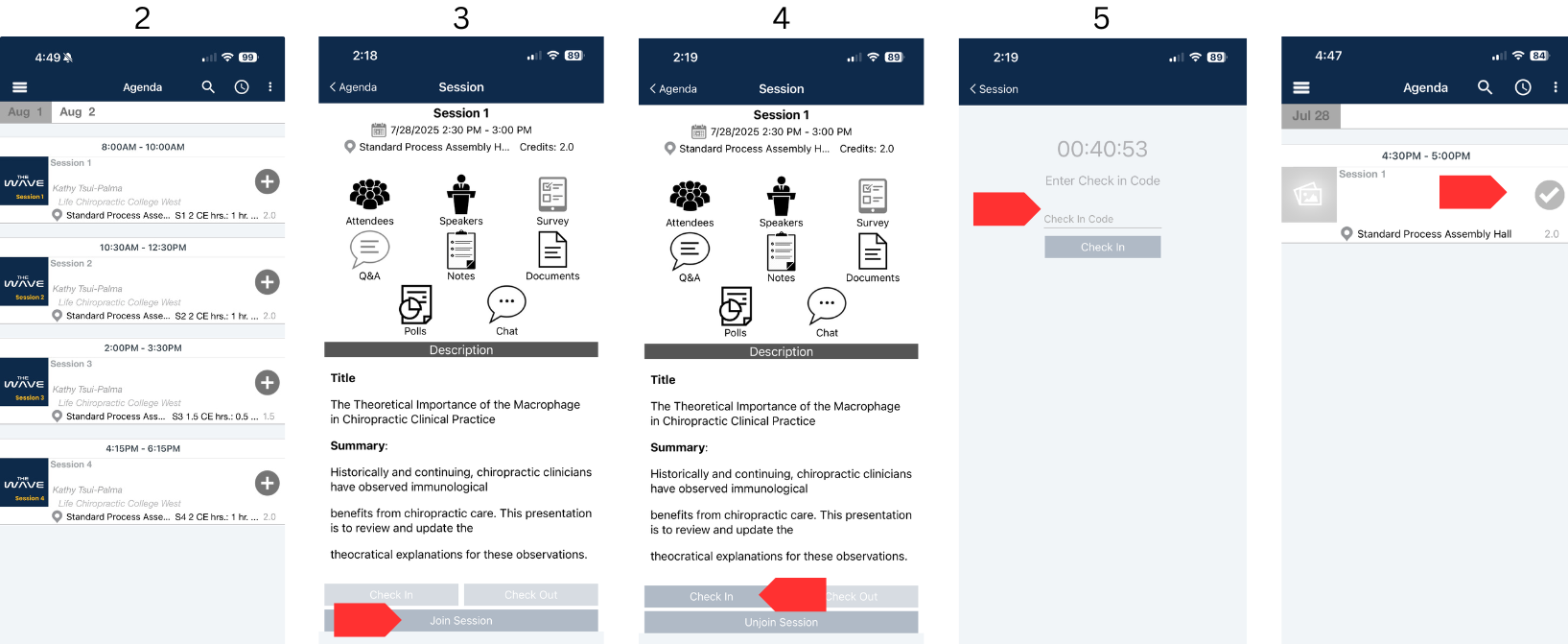
The app opens to your Agenda (your list of sessions).
If you don’t see the agenda, tap the ☰ menu in the top-left corner and select Agenda.
Find the session you're attending and select it.
Tap Join Session.
Tap Check In.
Enter the code shown on the screen in the room
✓A gray check mark will appear next to the session once you're checked in.
Step 4: Sign Out of Sessions
At the end of the session:
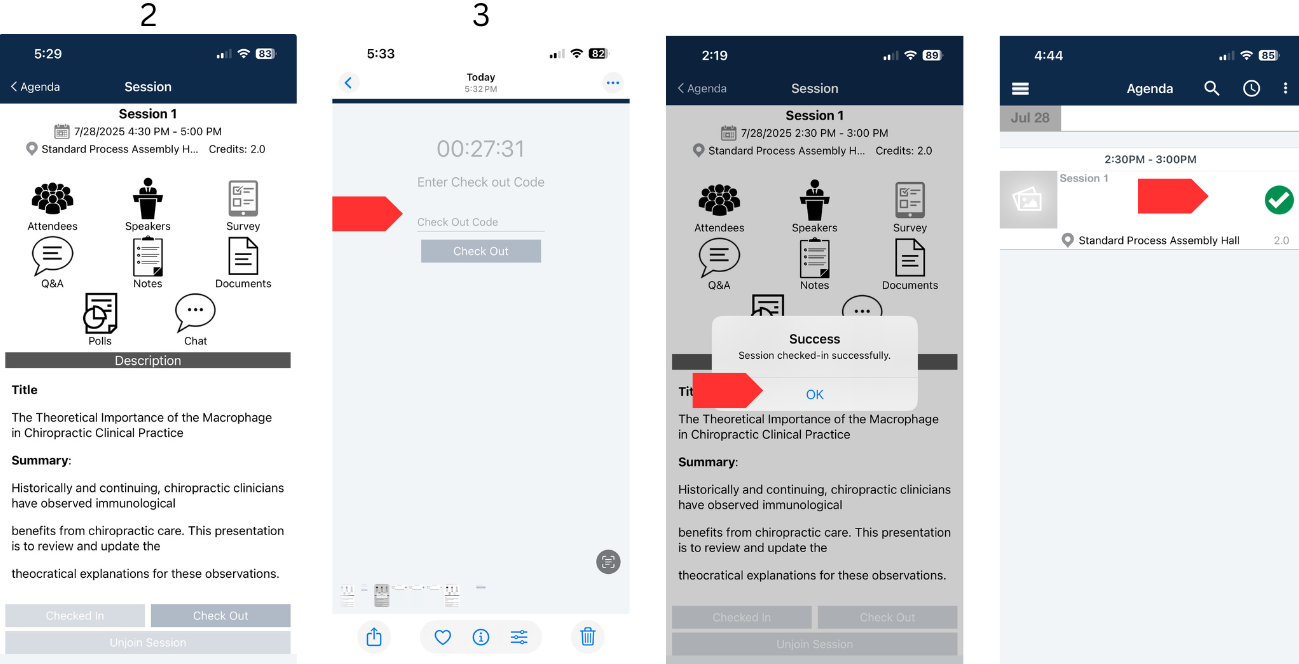
Open the same session in the app.
Tap Check Out.
Enter the code shown on the screen.
✓A green check mark means you’ve received credit for that session.
Need Help?
Visit the Registration Desk in the Exhibit Hall
Other App Features
Dashboard – Quick links to app features
Sponsor – View our event sponsors
Speakers – See bios of all speakers
Exhibitors – Find vendor info and contact details
Map – View the Exhibitor Hall layout
Campus Map – Locate rooms on campus
My Timeline – See which sessions you attended
My Profile – Update your info and add a photo
Food Options – View participating vendors and explore their menus